

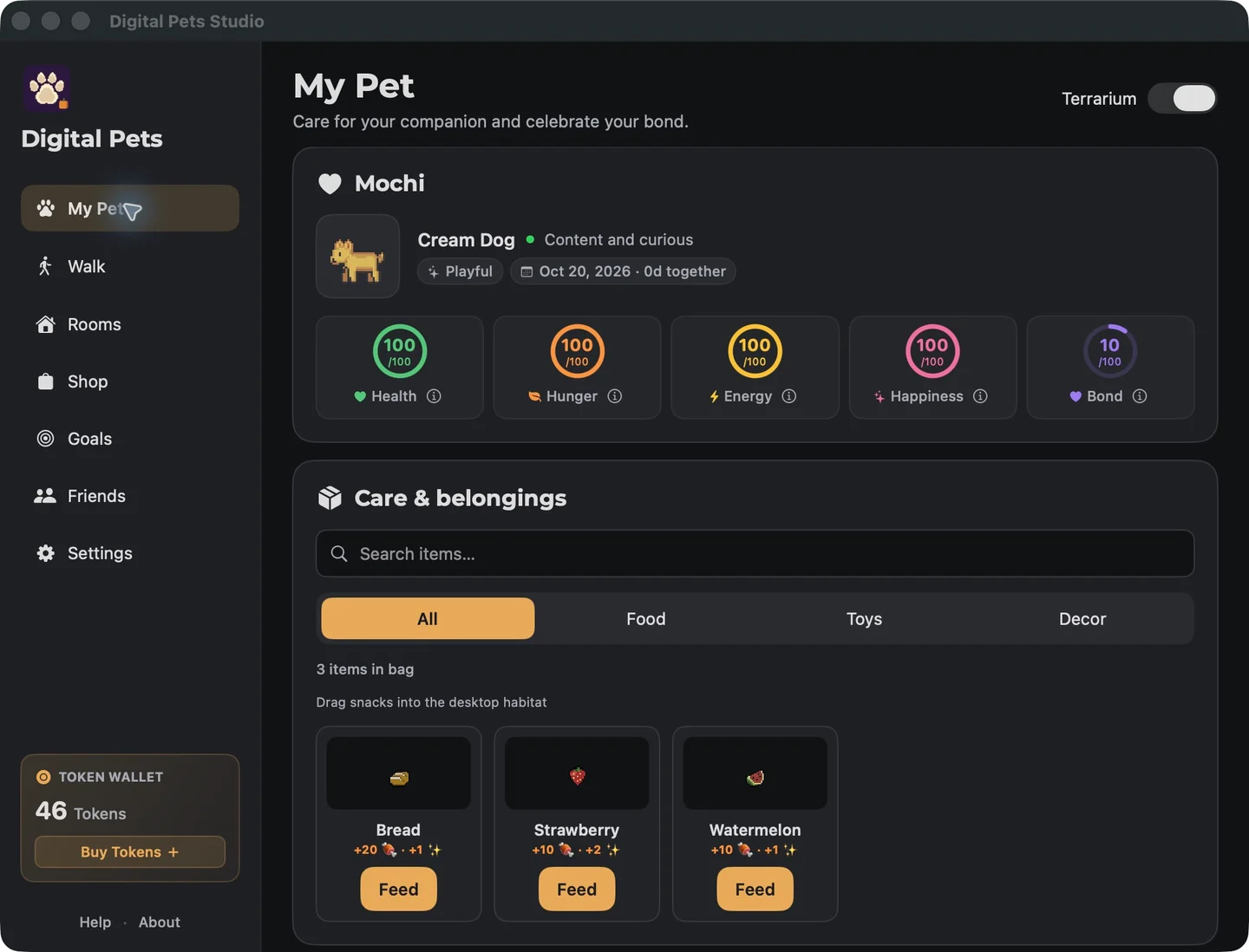
A desktop pet gives your Mac a small companion alongside the windows and apps you use every day. In Digital Pets, that companion lives in a desktop terrarium, with a Studio where you can check its needs, choose items, and customize its home.
I build Digital Pets, formerly Touchbar Pets. This walkthrough shows how the current Mac app works, including the desktop experience for Macs that do not have a Touch Bar.
Do you need a Touch Bar?
No. The desktop terrarium can sit above your Dock. Touch Bar features remain available on supported MacBook models, but a Touch Bar is not required for the desktop pet experience.
Digital Pets requires macOS 14.0 or later. It is free to download from the Mac App Store; check that listing for current compatibility and optional purchases.
Open Studio and find your companion
After installing the app, open Digital Pets Studio. If you cannot see your pet’s home, check that the Terrarium switch is on. You can also show the terrarium from the app’s menu bar icon.
If its position has become awkward, Settings → Display includes Reset above Dock. This brings the terrarium back into view without having to search across your desktop.
Check what your pet needs
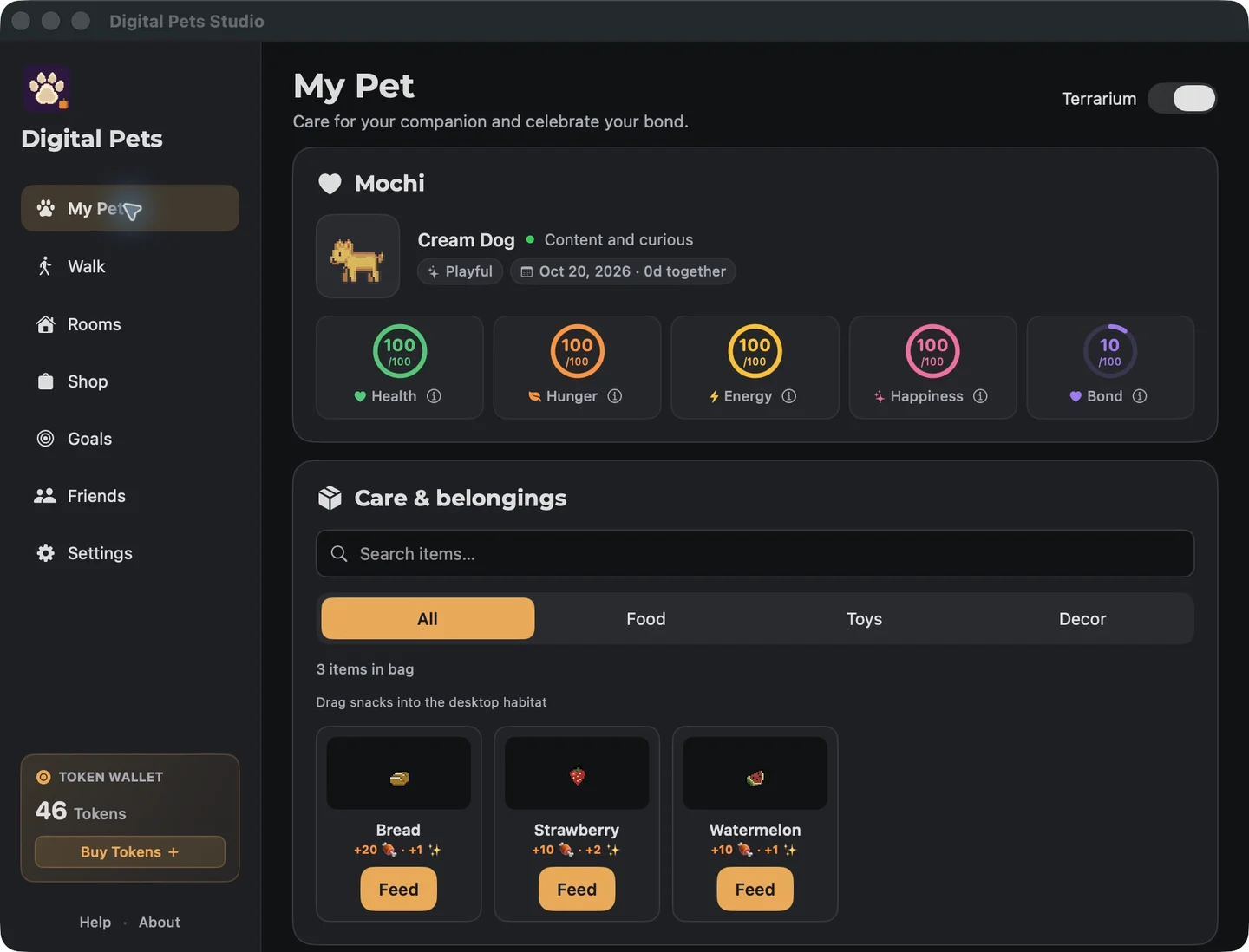
The My Pet area shows health, hunger, energy, happiness, and bond. The information button beside each stat explains how that part of your companion’s care works.
Use those stats to decide what to do next. You can buy food in the Shop, feed snacks from your pantry, play with toys, and spend time petting your companion. Check back in My Pet to see how your pet is doing rather than trying to remember every number.
Make its home your own
Explore the room and decoration options to give your companion a home that fits your desktop. A small arrangement can be easier to read while you are working, while a larger space gives you more room to make a scene.
Try the terrarium in the position you expect to use each day before spending time arranging every item. Its relationship to your Dock and open windows matters as much as the decoration inside it.
Take a walk
Open the Walk tab, choose Garden, City, or Snow, and start an adventure. Hold the trail in the terrarium to move, and release to pause. Look for presents and other discoveries along the way.
Walks give you something active to do with your companion between quieter moments on the desktop. You can return to Studio afterwards to check its care stats and pantry.
Keep help close by
The Digital Pets FAQ covers installation, Touch Bar support, finding the terrarium, caring for your companion, and walks. Read the privacy policy for details about data practices.
To see the app before installing it, visit the Digital Pets showcase. When you are ready, download Digital Pets from the Mac App Store.