
Your Mac does not need a new wallpaper to feel a little more festive. Festive Lights adds string lights around the parts of your desktop you already use: the Dock, menu bar, and screen edges.
This guide covers the app I build, so the screenshots show Festive Lights itself. You can use it for Christmas decorations or keep a quieter scene around for everyday atmosphere.
What you need
Festive Lights runs on macOS 14.5 or later and is available from the Mac App Store. It is free to download, with additional customization available through Pro. Check the store for current compatibility and purchase details.
1. Install and open Festive Lights
Download the app from its App Store listing, then open it on your Mac. The app’s controls let you choose where the lights appear and how they look. Keep the controls open while trying a few combinations so you can compare them on your own desktop.
2. Choose where the lights go
The main placements are the Dock, menu bar, and screen edges. A Dock arrangement frames your everyday apps, while lights along the menu bar put the decoration at the top of the display. Screen-edge placements give the desktop a wider border of light.
Start with one placement. This makes it easier to judge how the decorations fit around the windows you normally keep open, especially on a smaller laptop display.
3. Start with a scene
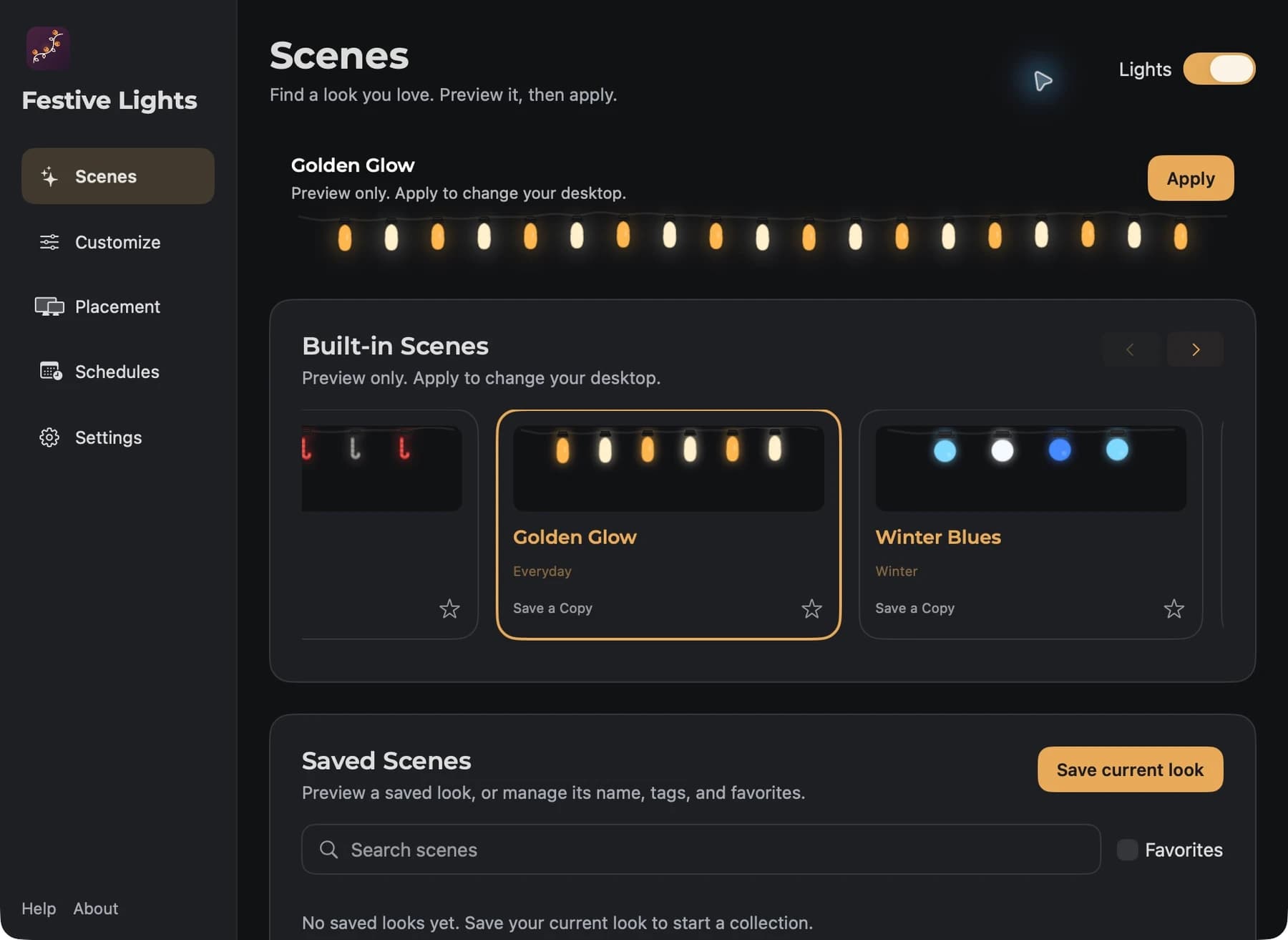
Choose a built-in scene before adjusting individual settings. Scenes provide a starting combination of colors and lighting behavior, which you can then adapt to your own desktop.
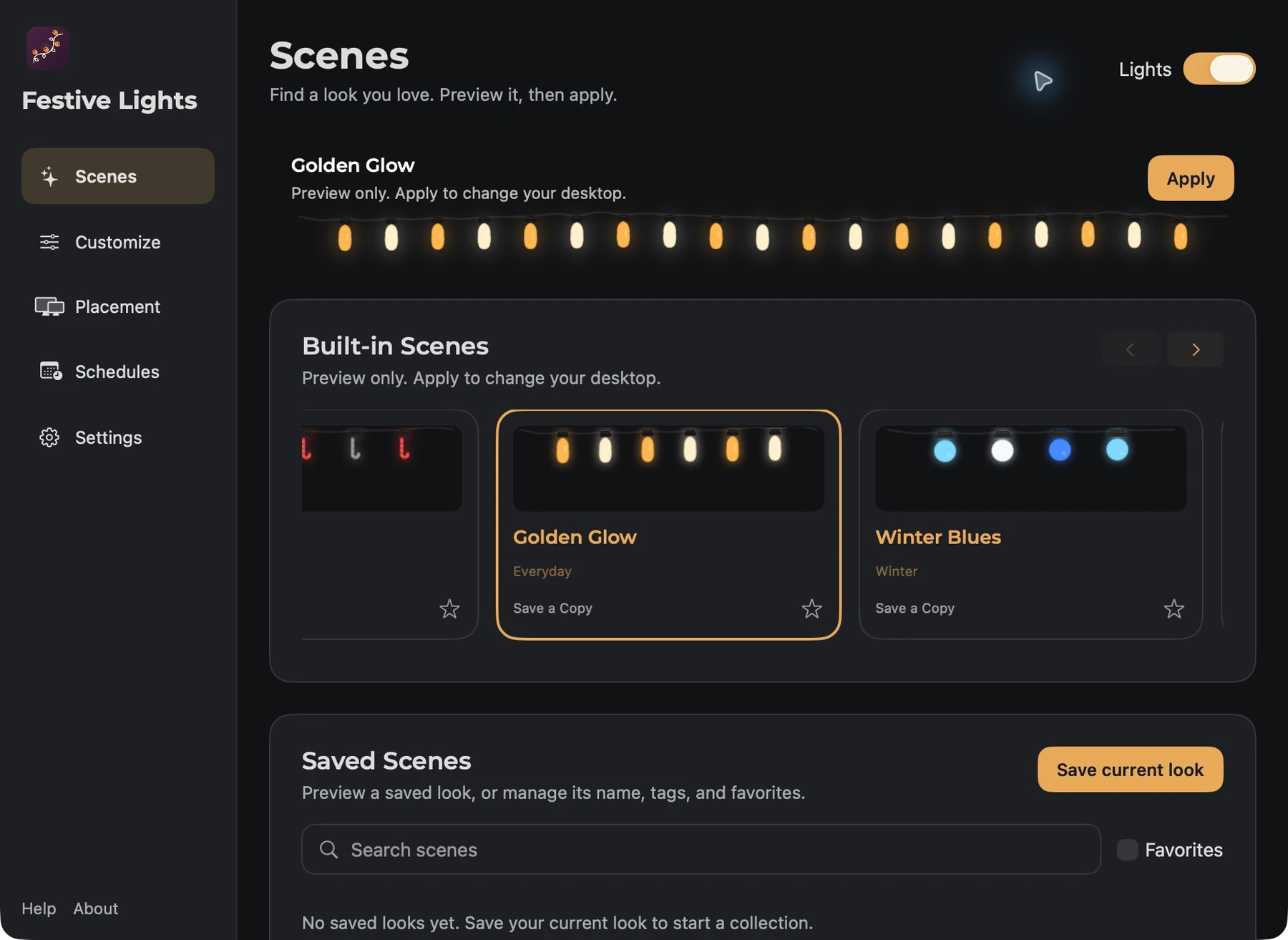
A warmer scene works well when you want a subtle change. For a Christmas setup, try a more colorful arrangement and compare it against your wallpaper and menu bar.
4. Adjust the bulbs and colors
Explore the available bulb and color controls to make the scene feel like yours. Make one change at a time, then look at the desktop rather than just the settings preview. You are choosing a decoration that will sit alongside your work, so a combination that looks good at a glance is more useful than one that only looks good in a screenshot.
Some customization options belong to Pro. The app and store listing explain the current purchase options.
5. Set a schedule
Use the scheduling controls if you want lights to appear at particular times. This is useful for an evening setup or a seasonal desktop that you want to enjoy without remembering to switch it on each day.
Is it only for Christmas?
No. Festive Lights also works as everyday desktop decoration. Choose different colors and scenes to suit the occasion rather than treating the app as a December-only setup.
Where to go next
Explore the Festive Lights showcase for more screenshots and features, or download Festive Lights from the Mac App Store. Its privacy policy explains the app’s data practices.